How to request for a statement from Parties?
What is Request statement?
The Request Statement helps company users configure request parameters, specify details needed from responders, and set up email-related preferences. It streamlines the process of gathering statements, balances, and confirmation
Below are the steps to send a request
A request can be sent from two locations:
Request Statement Tab – Navigate to the left panel and click on the "Request Statement" tab.
Track Reconciliation – Go to the "Track Reconciliation" section in the left panel and click on the "Add New Request" button.
Step 1
Step 1.1 - Request Title
- Enter a title for tracking the request in the "Track Reconciliation" module.
Step 1.2 - Sender Settings
- Select Request Type
- Ledger - Request for Ledger Statement for a specific period.
- Open Item - Request for an Open Item Statement up to a certain date.
- Select Share Balances/Statement- Select one of the options
- Share Statement -Share the Company statement with the party.
- Share Closing Balance - Share the Company Closing Balance with the party
- Attach Statement (DO NOT Share) - Attach the company statement and NOT share with the party. (Blank Confirmation)
- Attach Closing Balance(DO NOT Share) - Attach the Company Closing Balance and NOT share with the party. (Blank Confirmation)
- No (DO NOT Attach) - Do not attach any file while sending the request
- Select Import via - Select one of the options
- Browse File - Upload the company statement from the system.
- SFTP - Upload the company statement from the SFTP folder.
- Select Template- The options in dropdown are
- Positive
- Negative
- Select Start Date - The Start Date of the statement. This is applicable only if the request type is Ledger.
- Select End Date - The End Date of the statement.
- Select Branch- The company branch for which you want to send the request.
- Enter Remark- To enter customize remarks. This is will shared with the party while responding.
Step 1.3 - Responder Settings
- Select Request Open Item Statement (Enabled only for Request Type - Open Item)
- When Share Statement / Balance with the party? is selected Share Statement or Share Closing Balance the options displayed are:
- If Balance is Incorrect - The statement will be requested from the party only in when the balance is incorrect.
- Mandatory for all cases - The statement will be requested from the party only all cases.
- When Share Statement / Balance with the party? is selected Attach Statement (DO NOT Share) or Attach Closing Balance (DO NOT Share) or No (DO NOT Attach)
- Yes - The party is required to upload the statement.
- No - The party user will not upload the statement.
- Select Request Ledger Statement
- When Share Statement / Balance with the party? is selected Share Statement or Share Closing Balance the options displayed are:
- If Balance is Incorrect - The statement will be requested from the party only in when the balance is incorrect.
- Mandatory for all cases - The statement will be requested from the party only all cases.
- When Share Statement / Balance with the party? is selected Attach Statement (DO NOT Share) or Attach Closing Balance (DO NOT Share) or No (DO NOT Attach)
- Yes - The party is required to upload the statement.
- No - The party user will not upload the statement.
- Select Acceptable File Format - Select one of the option
- Excel Only - The responder can only upload Excel file.
- Excel & All Format - The responder can upload excel file along with other file formats
- Select Allow Party To Change Start Date & End Date (Disabled for now)
- Yes - To allow the party user to update the start date and end date of the request.
- No - To allow the party user to update the start date and end date of the request.
Step 1.4 - Email Settings
- Select Send Email From. Select the email id from which the request needs to be sent to the party.
- Select Email Template. This email template will be displayed to the party user on requesting a statement.
- Select Reminder Template. To schedule reminders to be a party in case they do not respond.
- Select Email Attachment. To attach a document to the email. eg. ledger format, authority letter.
- Select Contact Person. Select the person to whom parties can contact in case of query.
- Select Send Now?
- Now. To send the request at the current time.
- Schedule. Select Schedule Date and Time. If the request should be sent on the future date and time
Step 1.4 - Click on Next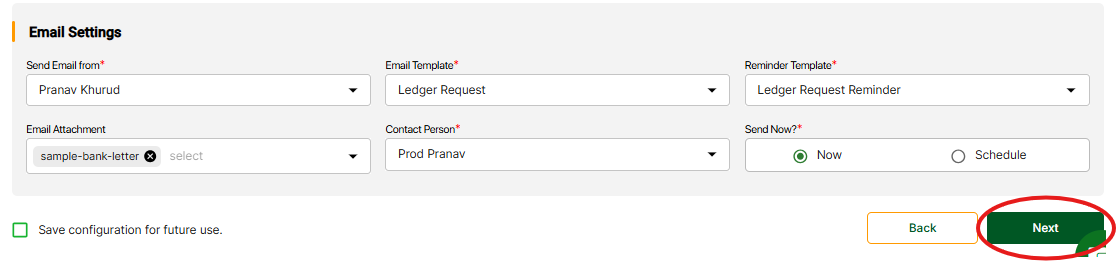
Step 2
Step-2.1A - Selecting Statement (Browse)
- Click Browse and select a file from the folder.
- Select a file from the folder.
- Select Confirm the sheet which contains the Ledger - Confirm the sheet containing the ledger data.
- Select Enter the row number which contains the headers - The row in which the header of the data is present.
Step-2.1B - Selecting Statement (SFTP)
- Click on SFTP
- Select a file and click on Next
Step- 2.2 - Complete the mapping.
- Resolve all the errors in the Mapping screen.
- Review all the mappings done by the system.
Step - 2.3 - Sending the Request
- Click on Preview
- Click on Send
Related Articles
Track Reco > All Parties
Here you can see the details of All Parties you have sent a request to. Click on View under Action If Reco is completed, we will land on Reco Summary Screen If Reco is not completed, we will land on File Upload Screen Click on 3 Dots under Action You ...Statistics
The Statistics screen will have overall statistics for the Reco Statement Status Responded - Parties who have responded to the request. Not Responded - Parties to whom the request is Delivered or who have read the request. Rejected - Parties wherein ...Understanding of Statement Status and Reconcilaition Status
Statement Status Meaning Responded The party user has responded to the request. Not Responded The request is at Delivered/Read Stage however not responded by the party. Rejected The statement has been rejected by the company. Failed The request is ...Review Stage
Here you can see the details of All Parties with following Reconciliation Status: Review Pending Reviewed Click on View under Action We will land on Reco Summary Screen Click on 3 Dots under Action You will get Options here on the basis of ...How to upload Open Item / Outstanding Statement
Step 1 - Select Sheet and Headers Row Step 2.1 - Map the columns to complete action pending Map the columns that are mandatory. In the below image, we can see that the "Doc Type" can be mapped to "Voucher/Document Type". System will recommend the ...